Try it
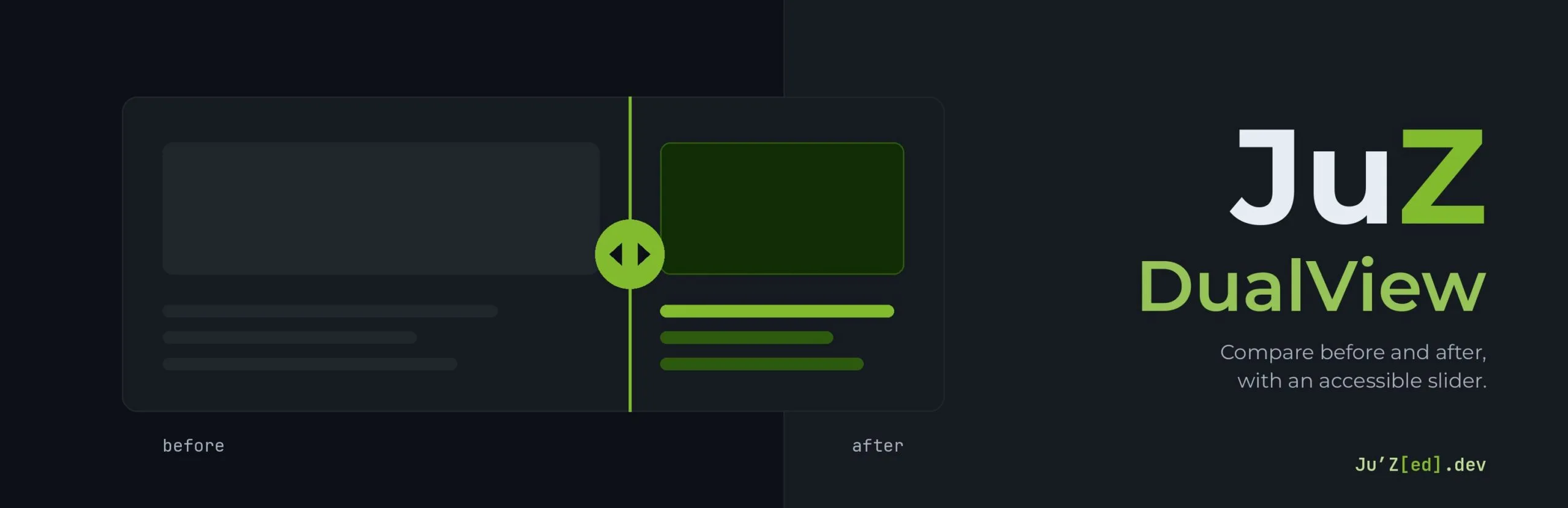
Drag the slider, or focus it and use the left and right arrow keys. Each example compares two versions of the same content.
Images


Before: the drawing in greys. After: the same drawing in colour.
Covers with text
First draft
Grey mock-up.
Final version
Colours and message.
Before: the first draft. After: the redesigned cover.
Text only
Our solution leverages cross-functional synergies to deliver best-in-class, end-to-end digital value.
We build websites that load fast and that everyone can use.
Before: the jargon. After: plain words.
How to use it
- Add the JuZ DualView block.
- Put any blocks in the Before and After groups: images, covers, text, a whole layout, as long as the content is not interactive (no links, buttons, forms or video players: the slider sits on top of them).
- Give the two sides a background when they hold text, so that one does not show through the other.
- Set the accessible label, the instructions and the description in the block settings.
// Frequently asked questions
Questions about JuZ DualView
Can I compare more than images?
Yes. Each side takes any blocks: images, covers, text or a whole layout, as long as the content is not interactive. Links, buttons, forms or video players would sit under the slider and could not be used.
Is the slider accessible?
Yes. It works with the mouse, touch and the keyboard (left and right arrow keys), with the proper ARIA attributes. Its accessibility was built with the guidance of Jean-Baptiste Audras (Whodunit).
In which language are the labels?
The default labels of the slider and its buttons are added when the page is displayed, in the language of the page. On a multilingual site, each page gets its own; the labels typed in the block settings are kept as they are.
Is it free?
Yes. JuZ DualView is free and open source (GPL), published on WordPress.org, with its source code on GitLab.